Android
How to customize your Gmail signature on Android
Customizing your Gmail signature on Android will allow you to let people know you’re mobile, or help pretend you’re at…
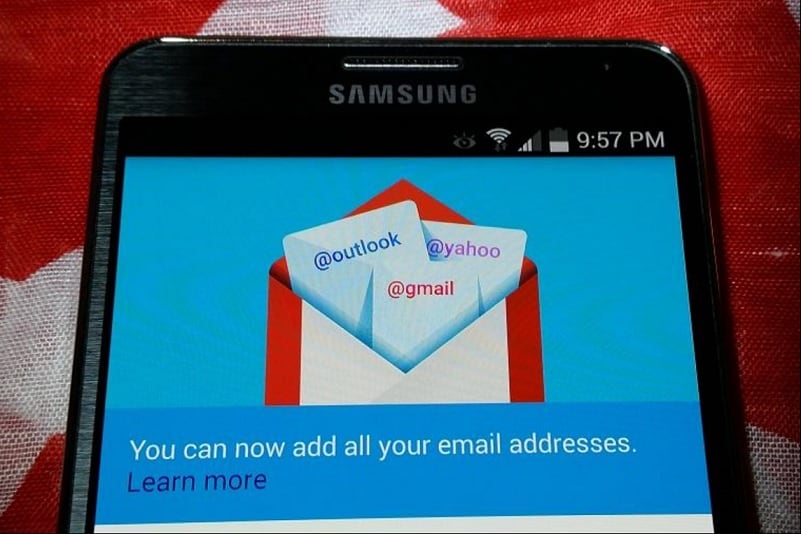
Customizing your Gmail signature on Android will allow you to let people know you’re mobile, or help pretend you’re at work.
Gmail’s Web interface allows you to add a signature that appends to your messages. Fortunately, the mobile application also supports this. What’s the importance of adding a signature? For starters you can make those you email a bit more forgiving to your typos, or perils experienced with autocorrect, if you simply add “Sent from my phone” to each message. Alternatively, you can add the same signature that your emails sent from the Web interface contain, so those you email will not know where it was sent from.
Step 1: In the Gmail app on your device, tap the menu icon in the top left-hand corner (or just slide the menu out). Choose Settings from the bottom of the menu.

Step 2: Choose the account that you want to set a signature for on the next screen.
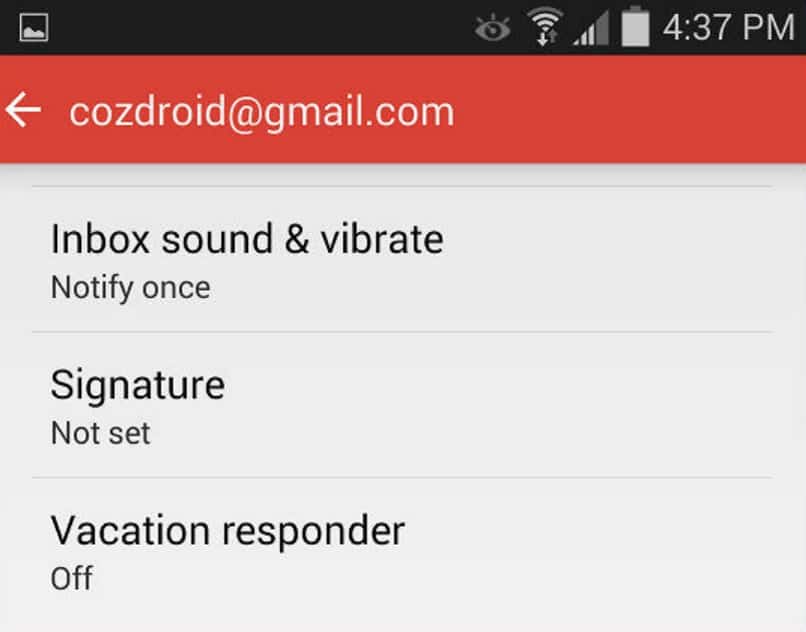
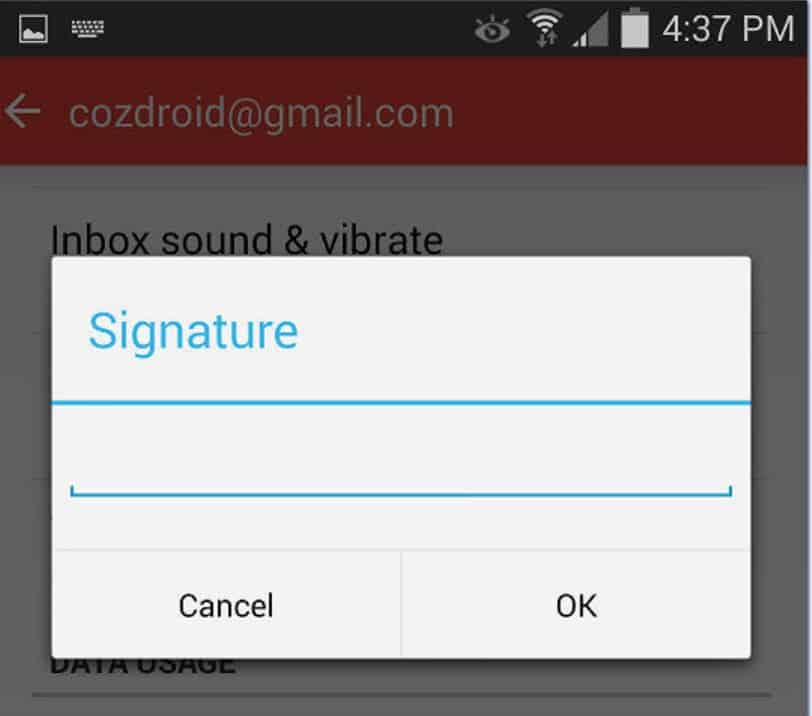
Step 3: Tap on Signature option and enter the details you want to include at the bottom of every email message. You can enter multiple lines by pressing the enter key.
Found this useful? Share it.
Related reading

Android3 min read
Third Time’s the Charm
Samsung Unpacked Unfolded – August 2021 Samsung hosted its bi-annual Unpacked event on 11th Aug, and I had a fair…

Android3 min read
Google I/O 2021 Summarized
Google hosted their much-anticipated Developer event last week between 18-20 May. Much-awaited, because last year’s event was cancelled due to pandemic. Google event has always intrigued me, this one was no different.

Android3 min read
Beware of Exploding Samsung Galaxy Note 7
Another report of Samsung Galaxy Note 7 exploding in the hand of a 6 YO kid is rocking the world…